Unity#
This article will take you through installing Unity Hub, the Unity Editor, and ALCOM (the FOSS alternative to VRChat Creator Companion).
Most info on this page was written with VRChat in mind, but a lot of it also applies to ChilloutVR. Assume it’s talking about VRChat unless otherwise specified.
Set up Unity Hub#
Choose a method to install Unity Hub. See also the official docs: Install the Unity Hub on Linux • Unity Docs
Once Unity Hub is installed, move on to the next section.
Unity Hub from Flatpak (recommended)#
Unity Hub (as of v4.0.0, currently in beta) is now distributed as a Flatpak, officially! This is different from the unofficial one on Flathub. The official Flatpak is a .flatpak file — a single-file bundle — that you manually install by opening it with KDE Discover, Bazaar, or flatpak install <filename>. You may need to uninstall any old Unity Flatpak versions, because these GUIs don’t let you update from local bundles.
Download the Unity Hub v4.0.0-beta.4 Flatpak (latest at the time of writing).
See also: Now Available: Unity Hub 4.0 Beta - Unity Hub - Unity Discussions
Unity Hub from unofficial Flatpak#
Alternatively, you can install Unity Hub from Flathub (unofficial). This occasionally ships an outdated version, but may be easier to set up than the below methods.
Unity Hub for officially-supported distros#
If you use Ubuntu, Debian, RHEL, or Fedora, installing Unity Hub from their official repos might work best. See their page Install the Unity Hub on Linux • Unity Docs for more info.
They also provide an official UnityHub AppImage.
Unity Hub from 3rd-party sources#
Arch Linux: use an AUR helper (such as yay or paru) to install unityhubAUR and libxml2-legacy. Read these comments, too.
NixOS: Install unityhub.
Unofficial AnyLinux AppImage for Unity Hub: pkgforge-dev/UnityHub-AppImage - GitHub
Without Unity Hub#
If you really want to avoid Unity Hub, there are other ways to get the editor version you need. Please note that, while avoiding Unity Hub is appealing, this method is harder. Also, without Unity Hub available, ALCOM won’t be able to migrate projects (from e.g. 2019 to 2022).
I haven’t personally tested a Hub-less installation, but others in the community report success.
Pick one of the below methods to install the Unity Editor and its modules directly. After installation, you must manually activate it with a license. You can follow the instructions on mob-sakai/unity-activate on GitHub.
Once completed, you can skip right to the ALCOM step. Make sure to manually add this Unity installation in ALCOM settings.
i. With Download Assistant#
Here is Unity’s download archive. Select the correct Unity version (currently VRChat recommends creators use 2022.3.22f1) and click “See all”, which will take you to this page: Unity 2022.3.22f1. On this page, under “Manual installs”, expand “Other installs” and get “Download Assistant (Linux)”. The Download Assistant is an install wizard GUI, much more lightweight than Unity Hub. It’s just an executable binary, so open it by double-clicking it in your file manager (e.g. Dolphin).
Install the “Android Build Support” and “Windows Build Support (Mono)” modules.
ii. With Unity Version Manager (uvm)#
unity-version-manager on GitHub
Unity Version Manager is a CLI application to manage Unity versions.
⚠️ WarningDisclaimer: uvm is a third-party application. AI agents were used in its development. I have not personally tested it. Your mileage may vary.
Use Unity Hub to install Unity#
First, take a look at this page from the official VRChat docs about how to install the supported Unity version from Unity Hub. We’ll do something similar.
- Open Unity Hub and sign in with your Unity account.
- If you have problems logging in, and are using a Google account to sign in, try getting regular Unity credentials instead. Or, install Unity Hub using a different method.
- Install 2022.3.22 (VRChat’s current supported Unity version, at the time of writing) by opening your browser to
unityhub://2022.3.22f1/887be4894c44. - When prompted, select Android Build Support and Windows Build Support (Mono).
- If on an Arch-based distro, install
libxml2-legacyto make sure the Unity Editor will properly open in all situations.- Proof that it’s required:
ldd ~/Unity/Hub/Editor/2022.3.22f1/Editor/Unity | grep libxml2.so.2
- Proof that it’s required:
- If using Unity Hub Flatpak, after installing the Unity Editor, you’ll need to make the license file available outside the sandbox.
- Method A - Install and open Flatseal, select Unity Hub, and add
xdg-config/unity3dto the filesystem overrides:
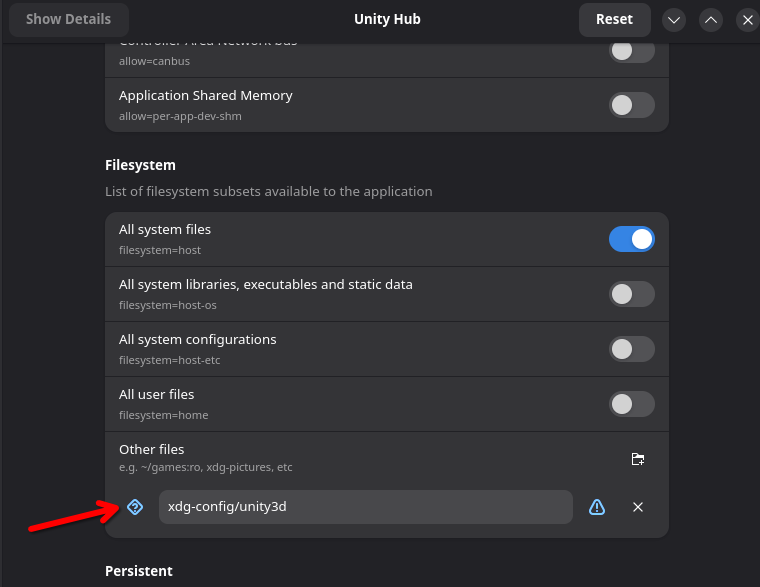
- Method B - Run this command:
sudo flatpak override --filesystem="xdg-config/unity3d" com.unity.UnityHub # or, if necessary flatpak --user override --filesystem="xdg-config/unity3d" com.unity.UnityHub - Unity Hub must be completely closed and reopened for this to take effect. Right click the tray icon → Quit. Reopen Unity Hub. You may need to log in to your Unity account again.
- Method A - Install and open Flatseal, select Unity Hub, and add
Every few months, you may need to re-open Unity Hub to renew the Unity license.
ALCOM#
ALCOM (Alternative Creator Companion) is a native FOSS package manager written in Rust. It supports Windows, Mac, and Linux.
- Visit ALCOM’s section on its installation.
- AppImage is the most common method people choose, but definitely check the “All Versions” for more options.
- If ALCOM doesn’t launch properly, and you have an Nvidia GPU, follow #ALCOM on Nvidia crashes on launch or only shows black, then come back here.
- If it only shows a blank white window, follow #ALCOM white window issue to try another way, then come back here.
- If using Unity Hub from an AppImage (official or AnyLinux), open the settings tab and under Unity Hub Path, point it to your
UnityHub.AppImage. - (Optional): In ALCOM settings, edit the default Unity command-line arguments, and add
-force-vulkan. Using Vulkan instead of OpenGL improves performance and stability for many users, but Nvidia users may need additional arguments alongside this one. - Create a new project and open it.
- Go to VRChat SDK → Show Control Panel and dock it to the main window.
- It may open windows partially offscreen. If this happens, see this section below.
Now you should be able to create and upload avatars and worlds like you normally would.
ALCOM white window issue#
The AppImage for ALCOM may only show a blank white window, depending on your distro (issue #1694). If you’re affected by this bug, you can’t use the ALCOM AppImage; you’ll have to install it another way:
- If on Arch, install it from AUR (alcomAUR or alcom-binAUR).
- If using Debian or Ubuntu, install the
.deb. - If using Fedora or OpenSUSE, install the
.rpm. - Otherwise, you must build ALCOM from source. Download the source code, install rust stable toolchain, open a terminal to the
vrc-get-guisubdirectory, and follow the compile instructions on the vrc-get-gui readme.
ALCOM on Nvidia crashes on launch or only shows black#
If you have an Nvidia GPU and ALCOM’s window is 100% black, or crashes on launch with an error like:
Gdk-Message: 21:28:08.375: Error 71 (Protocol error) dispatching to Wayland display.
Try launching with this environment variable:
__NV_DISABLE_EXPLICIT_SYNC=1You can do this by using e.g. KDE’s Menu Editor: Open the Application Launcher, right-click ALCOM → Edit Application… and paste that into the “Environment variables” field.
If that doesn’t work, then try with some combination of these instead:
GDK_BACKEND=x11
WEBKIT_DISABLE_DMABUF_RENDERER=1
WEBKIT_DISABLE_COMPOSITING_MODE=1
This is a bug in Tauri/Webkit2gtk. See issue #10702 on Tauri - GitHub.
World & Avatar SDK#
Out of the box, Build & Test doesn’t work, for both Avatars and Worlds. Thankfully, we maintain Linux-specific patches, which you can install with ALCOM like any other VCC package.
ℹ️ NoteTry to keep your VRChat SDK up-to-date for best results.
⚠️ WarningThis modifies the VRChat SDK using Harmony to properly work on Linux.
This is directly against the VRChat Terms of Service.
Though for what it’s worth, VRCFury does the same thing.
These patches for both the Worlds and Avatars SDK are available through this LinuxVRChatSDKPatch VCC page, or the source on GitHub.
Troubleshooting#
Unable to activate Unity license#
If you are using a Fedora or RHEL-based distribution, this may be caused by an OpenSSL configuration option.
To verify that this is the problem, check your ~/.config/unity3d/Unity/Unity.Licensing.Client.log.
If you see the text Interop+Crypto+OpenSslCryptographicException: error:03000098:digital envelope routines::invalid digest, running the following command as root will re-enable SHA-1 cryptography and resolve the issue:
update-crypto-policies --set DEFAULT:SHA1For more information, see the RHEL documentation on security hardening.
The NativeArray/NativeList issue#
There were a few releases of Unity Hub that installed the editor in a broken state.
Note: This is an old bug from a year ago that no longer affects anyone.
Show details
This would lead to console errors:
Library/PackageCache/com.unity.collections@2.1.4/Unity.Collections/NativeList.cs(837,24): error CS7036: There is no argument given that corresponds to the required formal parameter ‘safety’ of ‘NativeArray<T>.ReadOnly.ReadOnly(void*, int, ref AtomicSafetyHandle)’
This was broken around Unity Hub v3.15.2 and should be fixed by v3.15.3. Upgrade Unity Hub if necessary. You may need to uninstall and reinstall the Unity Editor and the Windows and Android Build Support modules. You do not need to switch to a different version number of the Unity Editor, just Unity Hub. The Flatpak method of Unity Hub was never affected by this; it dodged the issue just by virtue of being outdated.
More info here: Unity Editor does not recognize installed platforms - Unity Engine - Unity Discussions
Shaders fail to include some .cginc files#
This can happen with Poiyomi. It’s caused by case-sensitivity. You may need to edit the shader files directly. Open them in any text editor, and correct the casing of filenames.
Editor windows appear partially offscreen#
Unity may open undocked panel windows (such as color pickers and unitypackage import dialogs) partially offscreen.
Some workarounds:
- For KDE, hold the Meta (AKA Super, AKA WinKey) key and click anywhere in the window to drag it back onscreen.
- Alt-Tab to the specific window, then press Meta-Right to snap the window to the right side of the screen.
- For KDE, press ALT+F3 → More Actions → Move.
Can’t drag-and-drop files from external programs#
Rather than using Assets → Import New Asset or Import Package, it’s normally possible to drag-and-drop a unitypackage or other asset from a file browser directly into Unity’s Project pane, where it will be copied to the Assets folder.
However, if your file browser is running on Wayland, this will show “Failed copying file” errors.
As a workaround, launch your file browser in Xwayland mode. Unity will accept the file as it should.
WAYLAND_DISPLAY="" dolphinWhen Unity is opened via ALCOM, it crashes when dragging a hierarchy object#
An ALCOM-launched instance of Unity used to crash after trying to drag-and-drop an item within Unity.
Note: This is an old ALCOM bug that no longer affects anyone.
Show details
ℹ️ NoteIf you are on Nvidia, see the Crashing frequently with Nvidia section first.
This issue #1346 was fixed by ALCOM v0.1.14, so just update.
Analysis: ALCOM has a different environment than the rest of your system, mostly by virtue of being an AppImage. This means the Unity subprocess that it spawns was implicitly inheriting its crummy vars. Unfun fact: This environment inheritance causes several other problems (such as ignoring the user’s GTK theme for menubars and context menus, especially on a KDE system), but I’m not sure the cleanest way to unset those vars yet. A wrapper script around the Unity binary?
VRCFury builds lock up the editor#
When starting build or play mode, the VRCFury progress window may initially be 100% black, invisible, or pops underneath, which gives the appearance that the build isn’t doing anything and has locked up. If necessary, use the “Alt-tab to the specific window then Meta-Right” trick to get the VRCFury progress window to appear onscreen again.
Notes about filesystems#
To store Unity projects, typical filesystems like ext4 and btrfs are good choices.
If you keep running into problems with case sensitivity, look for case sensitive mount options or case-folding features. See also ciopfs.
If you trust NTFS to not be mishandled or corrupted by your kernel (which can be common, depending on who you talk to), NTFS can work just fine. It works around case-sensitivity ignorance in certain tools and assets, and is accessible when dual-booting with Windows. The Unity Editor itself should still be installed on a typical filesystem.
Here is an example of a bad filesystem for projects - exFAT:
A dialog may appear upon trying to build an avatar, where none of the buttons are helpful:
Moving Temp/unitystream.unity3d to /tmp/DefaultCompany/Some Avatar Project/prefab-id-v1_avtr_00000000-0000-0000-0000-000000000000_0000000000.prefab.unity3d:
Force Quit | Try Again | Cancel
This seems to happen consistently if the projects are stored on an exFAT partition. Consider storing projects on btrfs. Or if you need cross-OS access, try NTFS.
Missing audio#
Due to a Unity issue (fixed on a later release, but never backported to the Unity version required for VRChat), the editor on some systems will send audio to the wrong sink.
Workarounds:
- Install qpwgraph, connect the “FMOD Ex App” output to your speakers. You can activate and save the patchbay to make this happen persistently. See the patchbays page in the qpwgraph user manual.
- Install Pavucontrol and manually change the target device after every project launch
- Create a WirePlumber rule to change the audio device after editor launch. Setup is specific to your system configuration. See linked issue above for example config.
Built avatar appears non-stereoscopic to me and everyone else#
Ensure the filesystem your project is on has not been mounted with noexec.
With noexec, the shader compilation plugin from VRCSDK will fail with a warning:
Plugins: Couldn’t open /run/media/blahblahblah/MyProject/Packages/com.vrchat.base/Editor/VRCSDK/ShaderCompilerPlugin/Plugins/Linux/x86_64/libvrc_shader_compiler_plugin.so, error: […]: failed to map segment from shared object
Even though the plugin fails to load, the avatar will upload anyway, without including the DWR (Double Wide Rendering) shader variants necessary for VR.
The noexec mount option may also contribute to other issues such as being unable to run any binaries from inside the project, such as avatar patchers.
Crashing frequently with Nvidia#
On some systems with an Nvidia GPU, the Unity Editor may crash frequently from common actions like importing a unitypackage, dragging a file, or using the color picker.
These crashes can vary depending on what graphics API the editor is configured to use: OpenGL or Vulkan. You can tell which is active by reading the title bar. The graphics API would normally be configurable in the Player Settings page, but this seems to be reset every launch; the below command-line arguments tend to “stick” better.
If you use ALCOM to launch your projects: Open ALCOM, go to the “Default Unity Command-line Arguments” setting on the Settings page. Click “Edit”, “Customize”, “Reset”, “+”, then type in one or both of these into the box:
-force-vulkan- Make the Editor use Vulkan for rendering. Normally the graphics API depends on Player Settings.-force-vulkan-layers- Enables the Vulkan validation layer.-force-gfx-direct- Force single threaded rendering.
Then click Save. You may have to try different combinations. Start with trying the 1st and the 3rd.
If you use Unity Hub to launch your projects: Open Unity Hub, click the ... icon to the right of your project, then click “Add command line arguments”, and add the argument(s).
See the discussion thread.
Shader/Rendering issues#
Some shaders (a lot of Poiyomi ones) won’t work/preview properly on Linux when using GLSL rendering. Switching to Vulkan as shown in previous entry will resolve most, if not all of the problems.
Unity 2021 Crashing#
ℹ️ NoteThis section is specific to ChilloutVR.
If you are experiencing crashes or hangs with Unity 2021.3.x on Linux, follow these steps to resolve the issue:
-
Ensure you have installed the correct version of Unity along with both Windows and Linux build support.
-
Navigate to the Unity editor installation directory:
cd ~/Unity/Hub/Editor/2021.3.xxxx/Editor/Data -
Rename the
bee_backendfile tobee_backend.binby running:mv bee_backend bee_backend.bin -
Create a new text file named
bee_backendin the same directory:touch bee_backend -
Mark the new
bee_backendfile as executable:chmod 755 bee_backend -
Open the
bee_backendfile in a text editor and add the following script:#!/usr/bin/env bash args=("$@") for ((i=0; i<"${#args[@]}"; ++i)) do case ${args[i]} in --stdin-canary) unset args[i]; break;; esac done ${0}.bin "${args[@]}"